Computer Stuff

In The Cage
I was sitting at the end of the runway waiting for our sole 100% remote tech support drone to provision the black box before I can ship it to the West Coast. The tech support crew are a boring lot for the most part. The ones that are really good (either at tech or sycophancy) don’t stay in that department very long. The ones that stay are a usually a problem from a combination of stupidity and seniority. I tell ya. it’s enough to make an almost 40 year in the biz STEM guy look at Hot Dog On A Stick, and think “Yeah, that would be less hassle.”
Meanwhile, back in Interzone.
I was talking with one of my professors, who I expect will see this, about computing back in the day. He’s old-school, like Teletype, Star Trek, and Core Wars old-school. I suspect he is one of the OG’s in the field. We had a nice, albeit brief, conversation after class about the limitations of 8-bit computing back in the day when dealing with big numbers, really old-school computer games, and data communications in the Teletype and early dial-up eras when 1200 baud was considered screaming fast.
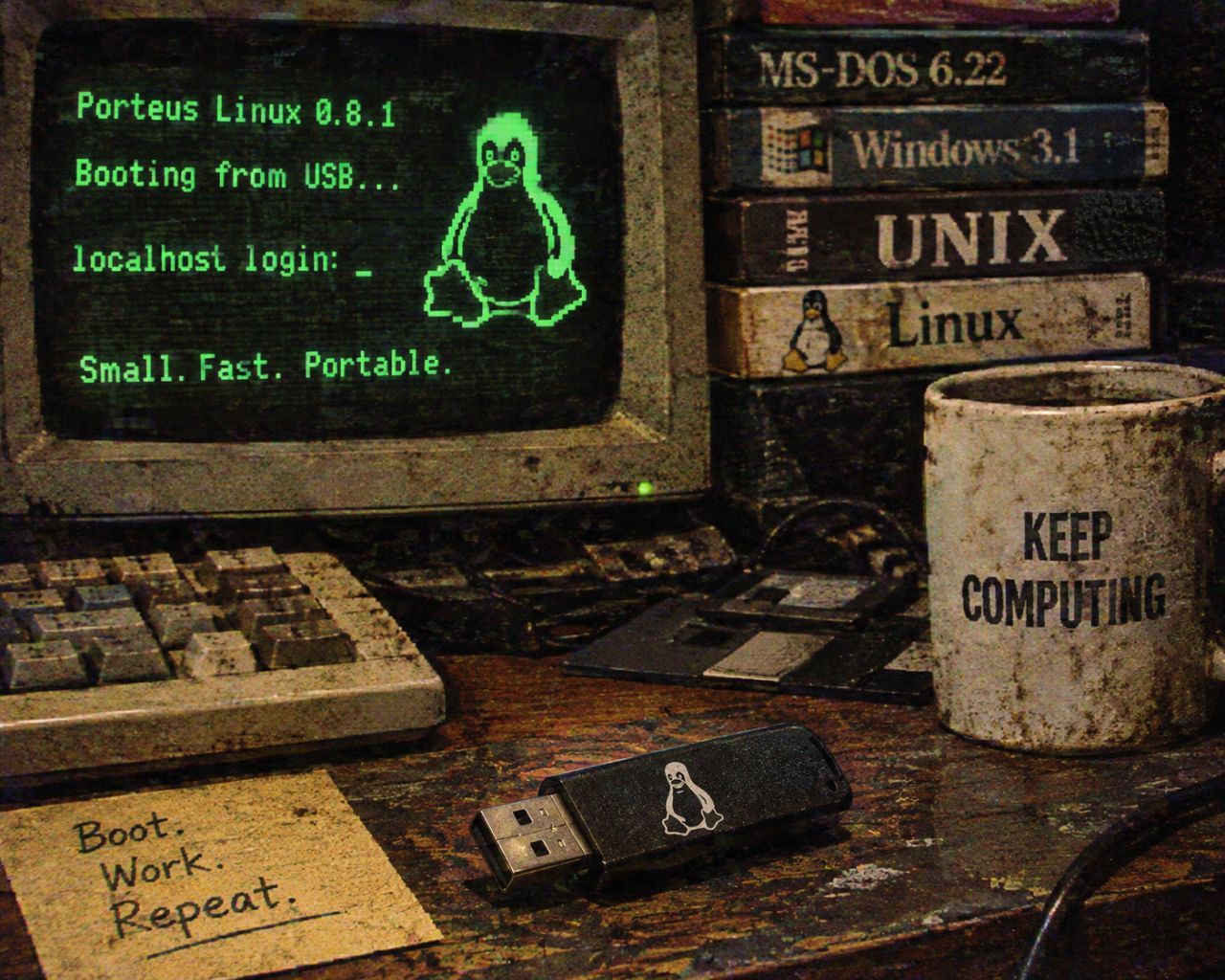
I’m a retro computing enthusiast. I started out and grew up in the late 8-bit and 16 bit era, but the 16 bit machines were too expensive so I had to make do with Z80 and 6502 machines. Still got things done though, and still kicking myself in the butt for getting rid of the Cromemco S-100 and DEC Pro-300 I picked up dirt cheap in the late 1980s and early 1990s because nobody wanted them back then. It’s just hardware however. You can’t do anything with the hardware without the software, and the purpose of software is to just get things done.
The old 8-bit hardware was cool back in the day, but now commands a premium among collectors who often have more money than common sense. We’re up to 64 bits now, and anything I wanted to do in 8-bit I can do faster and better with 64, even if I have to run an emulator. I do like the old school 8-bit command line aesthetic, where I get a READY_ prompt and can get an immediate response to a typed command. I think the last time that hit the zone for me with late-model computing hardware was my mid 1990s vintage 486-DX2-66 running MSDOS and Windows 3.1 which I could ignore when I felt like it. That was also back when the Internet was a nominal 56K and dial-up with PPP or shell access.
In the grand scheme of things, I don’t need a lot for basic tasks: word processor, shell Internet for getting email and Gopher, and the occasional game of Nethack. So I reached out to an Oracle.
Ask The Fringe Bot
I’m looking for a lo-fi OS that fits on a small USB stick and can boot off any recent (<15 years) workstation for basic computing tasks.
Ah, an excellent request. You’re looking for a digital Swiss Army knife: a tiny, portable operating system that lives on a USB stick, boots on ordinary PC hardware, and doesn’t demand much from its host machine.
There’s a whole shelf in the Library devoted to these. The technical term is portable live Linux. The less technical term is “a computer in your pocket that doesn’t need a computer of its own.”
I’d prioritize four things:
- Small footprint: Ideally fits on a 4–8 GB USB stick.
- Hardware compatibility: Boots on modern x86-64 workstations with UEFI.
- Basic computing: Terminal, file management, networking, browser, text editing.
- Portability: Doesn’t need installation or modifications to the workstation’s internal drive.
The shortlist
Summary of 5 XFCE Distros: Xubuntu, Mint, Fedora, Manjaro, Porteus
Best match for tiny USB
1\. Porteus Linux
Under 300 MB
- Designed specifically for portable USB operation.
- Modular software: add only what you need.
- Supports persistent changes or an entirely fresh session.
- XFCE and LXQt desktop options.
My first choice if minimal size is the priority. 
Portable Linux+1
AntiX Linux: Not Pretty but Highly Functional
Best all-round compatibility candidate
2\. antiX Linux
\~660 MB–2.2 GB
- Debian-based.
- Available in 32-bit and 64-bit editions.
- Live USB with persistence.
- Lightweight window managers.
- Good for older and newer Intel/AMD machines.
My choice if you want a more complete, general-purpose OS without much fuss. 
antiX Linux
ICT Business | SparkyLinux 7.2 Orion Belt idealna je alternativa za Windows 11
3\. SparkyOS onUSB
USB-first desktop
- Designed to run as a complete portable system.
- UEFI-oriented modern hardware support.
- Xfce desktop.
- Debian and Arch-based editions.
- Persistent files and software updates.
Worth investigating if you want something closer to a portable workstation than a rescue disk. 
SparkyOS onUSB
SparkyOS onUSB official website
适用于老旧设备的七款轻量级 Linux 发行版 - 系统极客
4\. Puppy Linux
\~300 MB–1.1 GB, depending on edition
- Very lightweight.
- Runs comfortably in RAM on suitable hardware.
- Persistent USB sessions.
- Comes with a useful collection of basic applications.
Great for a small utility computer, although its different editions can make software compatibility less straightforward.
My recommendation
I’d narrow it down to Porteus XFCE versus antiX Full.
Requirement | Porteus | antiX —————————|————|——— Tiny USB footprint | Excellent | Good General desktop | Good | Very good Persistence | Yes | Yes Older hardware | Yes | Excellent Modular software | Excellent | Good Debian package ecosystem | No | Yes
One important distinction: a tiny ISO doesn’t necessarily mean a tiny working system. Modern web browsers can consume more RAM than the operating system itself.
Hardware and USB setup
For your target of workstations manufactured roughly 2011–2026, I’d use these specifications:
| Component | Recommendation | | ————- | —————————————— | | USB stick | 8 GB minimum; 16 GB preferred | | USB interface | USB 3.0 | | Processor | x86-64 Intel/AMD | | RAM | 2 GB minimum; 4 GB preferred | | Boot mode | UEFI, with legacy BIOS support as a bonus | | Filesystem | FAT32 boot partition | | Persistence | Optional encrypted persistence |
A few compatibility caveats:
- Some machines have Secure Boot enabled. You may need to disable it if the distribution doesn’t support your firmware’s Secure Boot configuration.
- Some corporate workstations restrict external USB booting.
- Wi-Fi, graphics and docking-station support can vary by machine.
- No distribution can guarantee booting on literally every workstation.
How I’d build the stick
I’d use Ventoy (official website).
Ventoy Adwaita Theme - KDE Store
Ventoy lets you put multiple Linux ISO files on one USB stick and select which one to boot.
My proposed configuration:
- Install Ventoy onto a 16 GB USB 3.0 stick.
- Copy the Porteus ISO onto it.
- Copy the antiX ISO onto it.
- Boot from USB and select your preferred OS.
- Test networking, display, audio and file access.
One caution: test persistence separately. Ventoy’s normal ISO boot doesn’t automatically configure every distribution’s persistence mechanism.
Join The Cult - https://nicheof.one
<END OF REPLY>
Ticom, speaks.
I’m looking at that response, and it doesn’t suck any worse than what I’d get on Reddit, 4chan, Substack, or wherever. Of course, everybody knows that the quickest way to start a geek jihad is to talk about preferred flavors of *nix. I’ve run a few, mostly Debian distros, and in the end picked BSD. Why BSD? Because it’s closer to old-fashioned Unix than Linux.
The Oracle Responds
Ah! A change of operating-system allegiance. Excellent. We’ll move the build from the Linux stacks to the BSD archives.
BSD is a particularly interesting choice for a portable terminal workstation: clean UNIX foundations, excellent networking tools, a strong command-line environment, and a rather satisfying absence of unnecessary fuss.
My recommendation changes to FreeBSD or OpenBSD, depending on your priorities.
For your original requirements:
- 4 GB USB stick.
- x86-64 workstations, approximately 2011–2026.
- Terminal-first computing.
- No installation to the host’s internal drive.
- Both persistent and disposable operating modes.
There is one important distinction: BSD live USB environments are less standardized than Linux live USB distributions. We need to choose the right implementation rather than assume any BSD installer image will behave like a live system.
1. Which BSD?
My recommendation
OpenBSD
Security-focused, compact, excellent UNIX command-line tools, SSH, networking and scripting. A strong fit for a small administrative toolkit.
Official site: OpenBSD
Getting started with FreeBSD as a desktop operating system | Opensource.com
FreeBSD
More extensive general-purpose UNIX ecosystem, excellent documentation, ZFS and broad server capabilities.
Official site: FreeBSD
A Complete Guide to Creating a Portable BSD | HackerNoon
NomadBSD
A purpose-built persistent FreeBSD live USB. However, its documented minimum USB capacity is 5 GB, so it doesn’t meet your 4 GB constraint.
NomadBSD project 
NomadBSD
Decision: OpenBSD wins for this particular build. FreeBSD is worth considering if you anticipate more extensive package installation or server development.
2. Concrete build: OpenBSD 8.0 amd64
Current release · November 2026
OpenBSD 8.0 was released October 20, 2026. 
OpenBSD
Official download locations:
The installation image is approximately 801 MB. 
ftp.eu.openbsd.org
3. USB architecture
Here’s the proposed arrangement:
| Component | Configuration | | ——————- | —————— | | OS | OpenBSD 8.0 | | Architecture | amd64 | | Filesystem | FFS | | Encryption | Optional | | Shell | ksh | | Persistent files | /home | | Temporary workspace | /tmp | | Bootloader | OpenBSD bootloader | | Desktop | None | | Target | 4 GB USB |
Important capacity warning: OpenBSD officially recommends 8 GB or more for comfortable installation, although its documentation says installations as small as 512 MB are possible for advanced users. Four GB is a constrained build, not a comfortable long-term installation. 
OpenBSD
4. Installation instructions
You’ll need a second USB drive temporarily to act as installation media. The 4 GB stick will be your finished operating system.
Step 1 — Prepare installation media
- Download
install80.img. - Use Rufus or balenaEtcher to write it to the temporary USB.
- Verify the downloaded image using the official checksum and signature instructions.
Step 2 — Boot the installer
- Insert both USB drives.
- Boot the workstation from the installer USB.
- Select Install.
- Identify the 4 GB target USB carefully.
Step 3 — Install OpenBSD
Choose the target USB as the installation disk.
For a space-constrained terminal system:
- Install the required kernel and base system.
- Include manual pages.
- Skip X11, games and source sets.
- Use FFS rather than ZFS.
- Avoid a large swap partition.
- Preserve sufficient space for
/var,/tmpand/home.
The installer will handle bootloader and filesystem configuration.
Never select the workstation’s internal disk as the installation target.
Step 4 — First boot
Remove the installer USB and boot from your new OpenBSD USB.
Log in and inspect the hardware:
uname -a
dmesg | less
ifconfig
sysctl hw
5. Configure your terminal toolkit
OpenBSD already includes many useful tools.
I’d start with:
doas pkg_add tmux git vim htopUseful native utilities include:
| Command | Function | | ——— | ——————— | | ssh | Remote administration | | ftp | File transfers | | vi | Text editing | | pfctl | Firewall management | | tcpdump | Network inspection | | doas | Privileged commands | | tmux | Terminal multiplexing | | ksh | Default shell |
You can configure SSH and networking without installing a desktop environment.
6. Your two operating modes
Here’s an important technical distinction.
| Mode | Implementation | | ————————- | —————————————— | | Persistent workstation | Normal OpenBSD boot | | Disposable recovery shell | Boot bsd.rd into its ramdisk environment |
bsd.rd runs in memory and provides an installer/recovery shell. It is not a complete disposable copy of your normal OpenBSD installation. 
OpenBSD
If you want two fully functional environments, one persistent and one that resets completely on every reboot, that requires additional engineering and storage. I wouldn’t promise that on a 4 GB stick.
7. Final recommendation
OpenBSD Pocket UNIX
Recommended constrained build
Build profile
- OpenBSD 8.0 amd64
- Terminal-only installation
- FFS filesystem
- ksh shell
- SSH and network utilities
- Persistent USB installation
bsd.rdrecovery environment- No graphical environment
My hardware recommendation
8 GB
A much healthier minimum for this project. 16 GB would be preferable.
One last archival question
There are two distinct ways to interpret your disposable mode:
What should happen when you reboot?
A. Boot a clean RAM-based recovery shell; normal mode saves everything.
B. Have two full terminal environments: one permanent, one that resets after reboot.
C. Boot the normal system read-only, with temporary writable storage in RAM.
Would you consider a larger USB?
No, strictly 4 GB
8 GB is acceptable
16 GB is acceptable
Finalize BSD architecture
The difference matters. We’re not merely building a USB operating system anymore; we’re designing a tiny, dual-personality UNIX workstation.
And in the BSD archives, dual personalities are generally filed under forked processes.
Join The Cult - https://nicheof.one
So why does this matter? What does it mean? What’s he building in there?
I’ve been in this biz for almost 50 years. Longer than many of you have been alive. I’ve dived dumpsters, grabbed stuff out of gaylords, and scrounged a lot of obtainium to keep on hacking. Hardware outlasts software by a significant piece, but it can’t keep up with increasing demands placed upon it by the latest and greatest software. You just need something to get some things done. Linux and BSD fit the bill to keep the older hardware running; older hardware you can get for free or pretty close to it.